VS Code Extension Overview
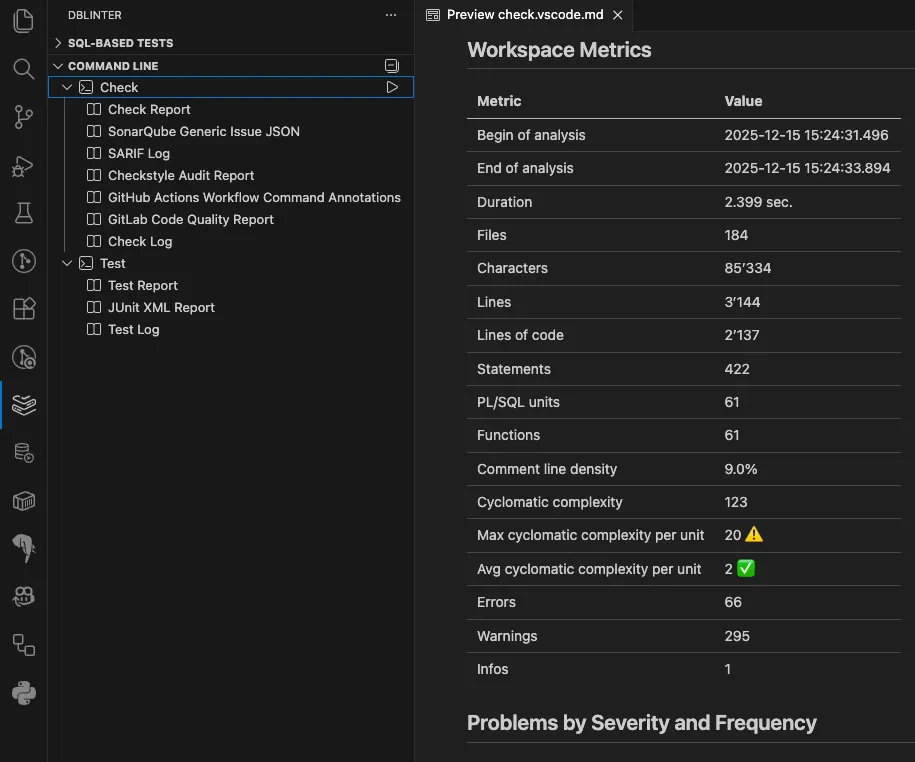
The dbLinter VS Code Extension provides rule violations and quick fixes for given URIs via the included language server. It further can run SQL-based tests and CLI commands.
This extension can be installed in any IDE that implement the Visual Studio Code Extension API.
The majority of these are IDEs based on Code OSS. An alternative to forking Code OSS is to implement the Visual Studio Code Extension API from scratch.
The list below shows IDEs that run locally on a developer’s machine. These IDEs have been successfully tested with dbLinter.
| IDE | Based on Code OSS? | First Release Date | Tested version |
|---|---|---|---|
| Visual Studio Code | yes | 2015-04 | 1.107.1 (2025-12-17) |
| Theia IDE | no | 2017-03 | 1.67.100 (2025-12-15) |
| VSCodium | yes | 2018-08 | 1.106.37943 (2025-11-26) |
| Cursor | yes | 2023-03 | 2.2.43 (2025-12-19) |
| Windsurf | yes | 2024-11 | 1.12.47 (2025-12-16) |
| Void | yes | 2025-01 | 1.4.9 (2025-06-23) |
| Kiro | yes | 2025-07 | 0.8.0 (2025-12-18) |
| Antigravity | yes | 2025-11 | 1.13.3 (2025-12-19) |
Releases of the dbLinter VS Code extensions are published in the Visual Studio Marketplace and the Open VSX Registry.
Installation
Section titled “Installation”- Open VS Code
- Go to Extensions
- Search for “dbLinter”
- Click Install
- Open IDE
- Go to Extensions
- Search for “dbLinter”
- Click Install
Settings
Section titled “Settings”The default settings are for an anonymous subscription plan.
This means that only around 50 rules are active.
These are the free rules from the Essential and Balanced profiles.
Which is a reasonable set for any project using an Oracle Database.
To configure the set of rules to be applied, you need at least a Starter Subscription (Free).
Examples
Section titled “Examples”Checks
Section titled “Checks”Available with an Anonymous Subscription (Free).
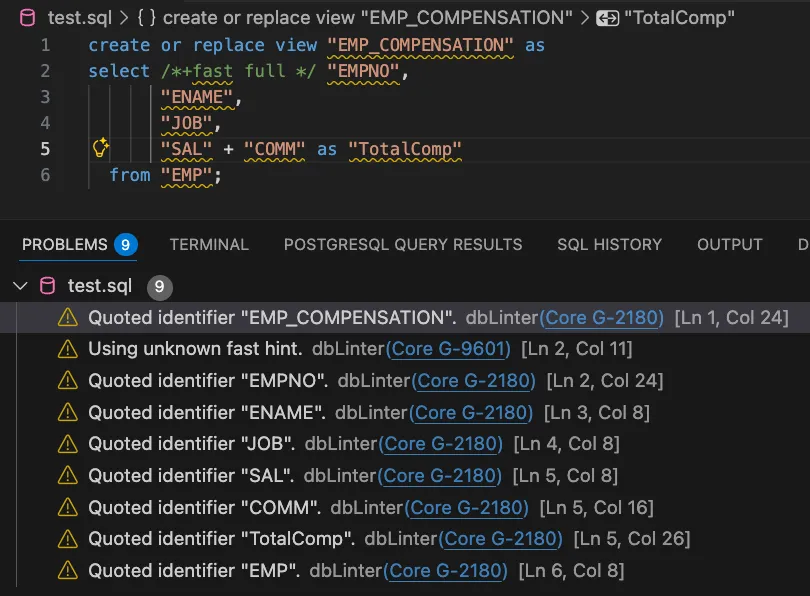
Quick Fixes
Section titled “Quick Fixes”Available with an Essential Subscription.
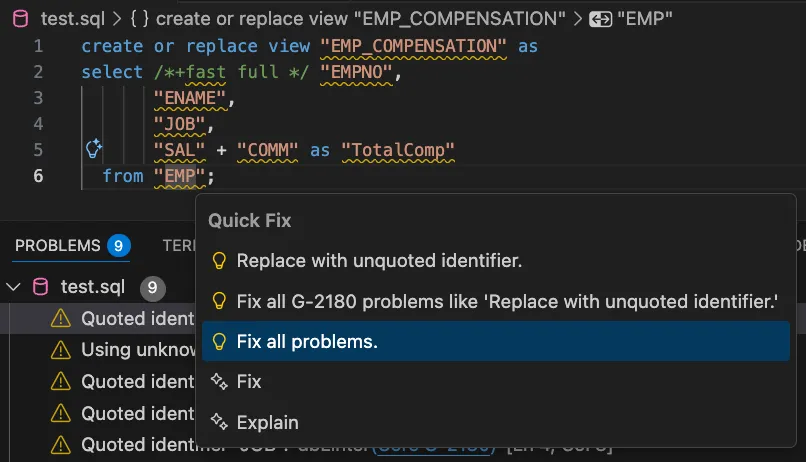
After applying Fix all problems:
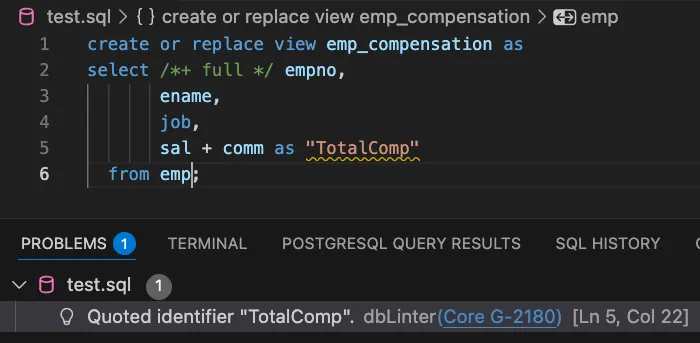
Ignore Issue
Section titled “Ignore Issue”Available with an Anonymous Subscription (Free).
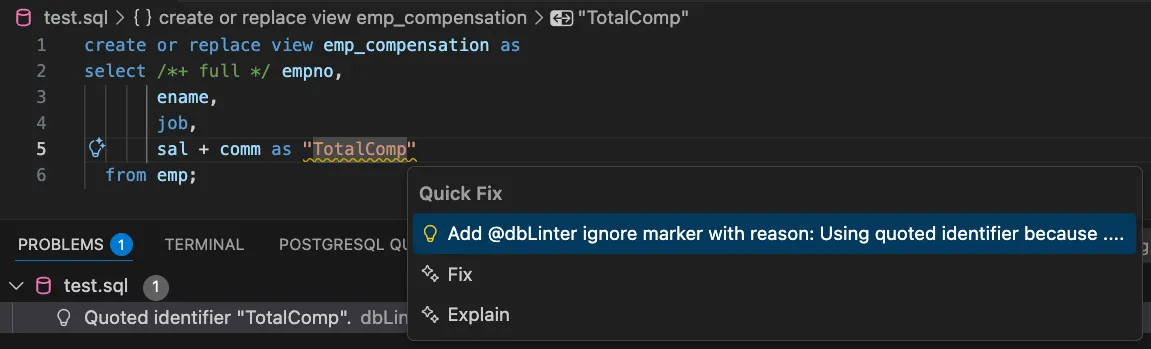
After adding the @dbLinter ignore marker comment:
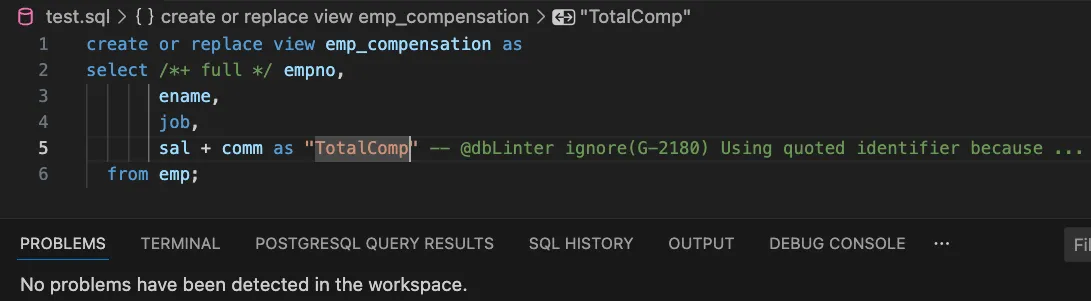
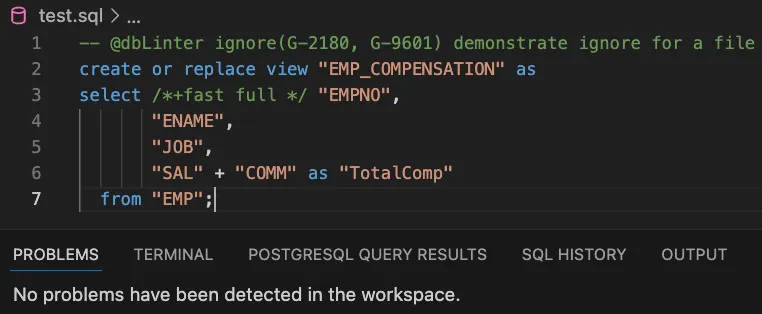
Ignore Issues in File
Section titled “Ignore Issues in File”Available with an Anonymous Subscription (Free).
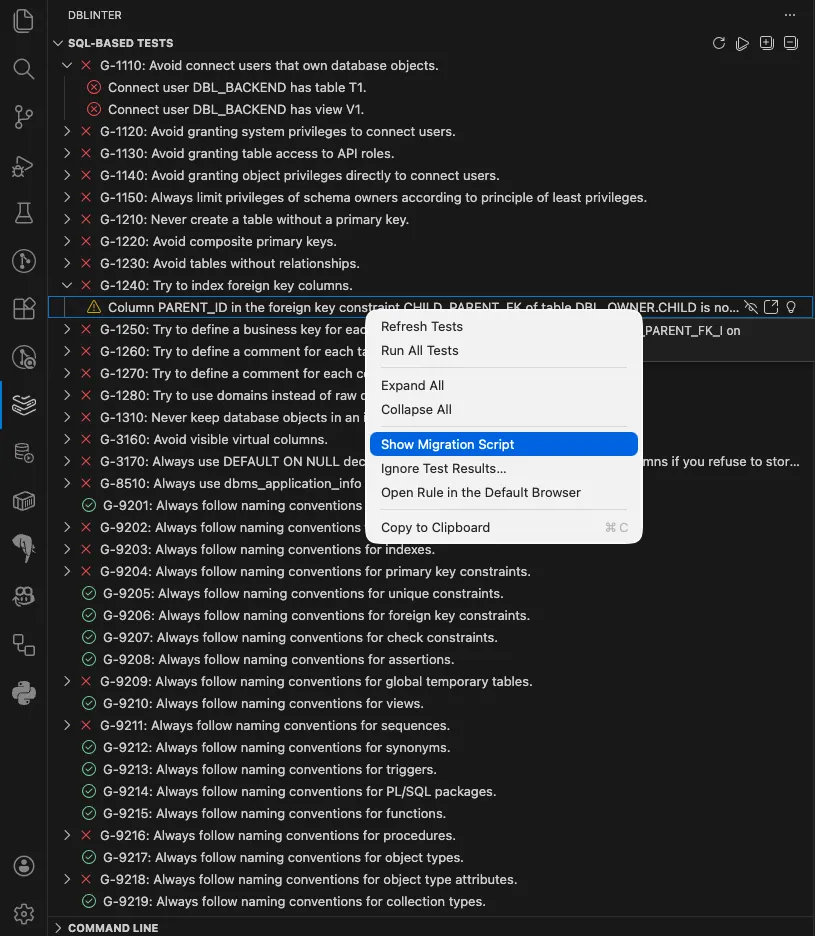
SQL-based Tests
Section titled “SQL-based Tests”Available with a Starter Subscription (Free).
CLI Integration
Section titled “CLI Integration”Available with an Essential Subscription.