Configurations
Database Connections
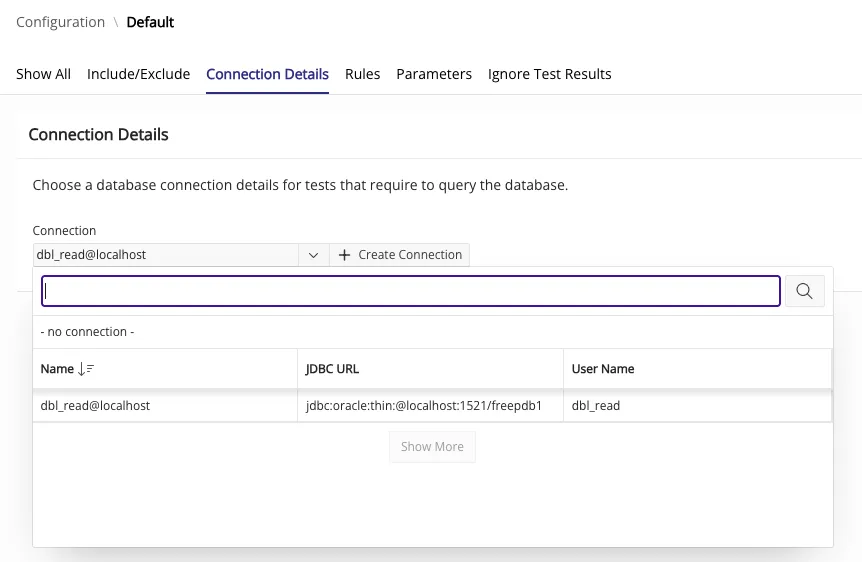
Section titled “Database Connections”As part of the configuration, you can optionally define a database connection. To do this, you first need to create a database connection.
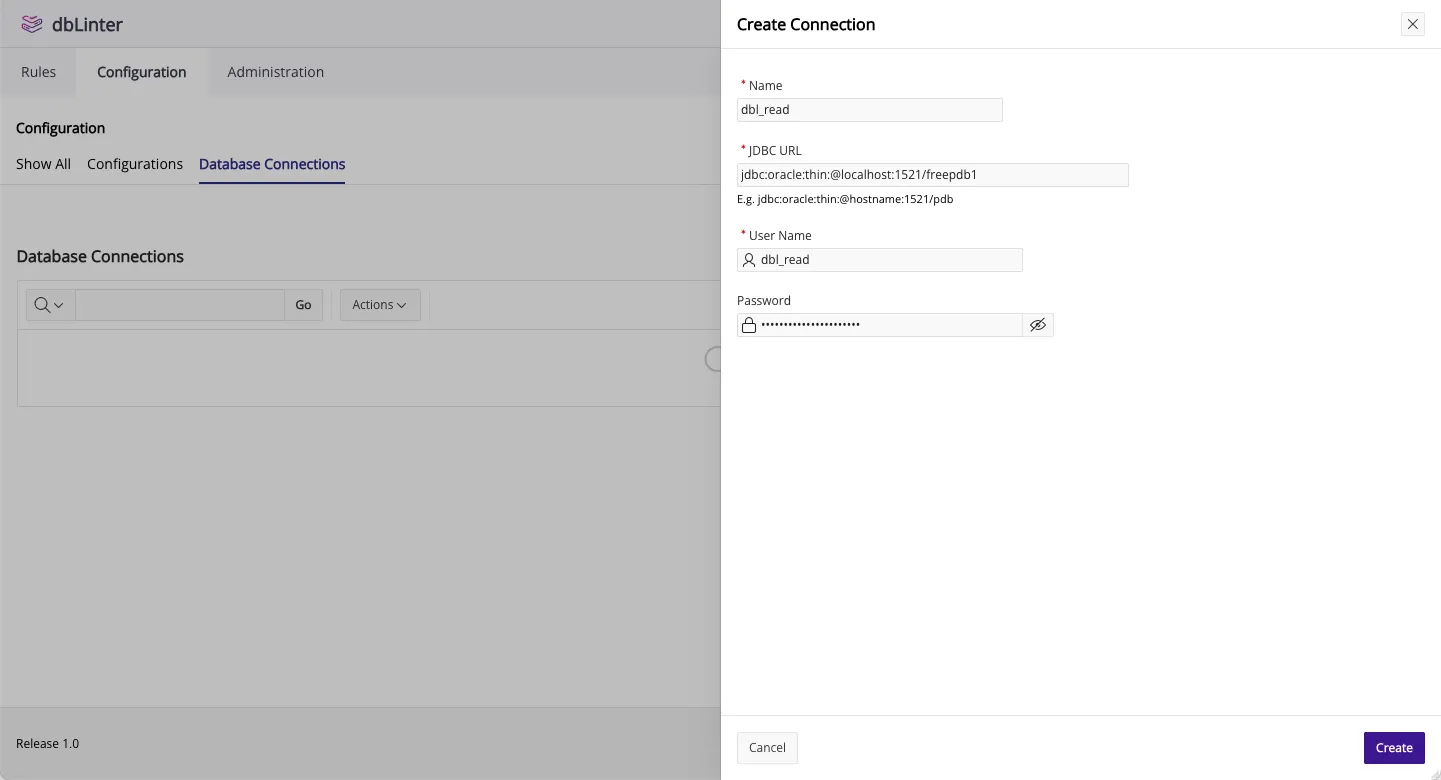
A database connection is required to execute SQL-based tests. Furthermore, the database connection can be used optionally in
- Checks, e.g. in G-7120: Always add the name of the program unit to its end keyword
to determine if the database version lets you add end labels to a
create type bodystatement. - Quick fixes, e.g. to determine the default format model in G-9010: Always use a format model in string to date/time conversion functions.
The password is stored encrypted in the dbLinter backend. However, you can omit the password here and define it in the client. In fact, you can configure all the attributes needed to establish a database connection directly in the client.
To check the code in the dbLinter Repo, we enabled all rules. One of these is G-1110: Avoid connect users that own database objects. This rule is implemented as an SQL-based test, meaning a query must be run against the Data Dictionary to determine if connect users own any database objects.
We therefore created a user called dbl_read in the database.
create user if not exists dbl_read identified by "(...)";grant connect to dbl_read;grant select any dictionary to dbl_read;To run SQL-based tests, you need to create a database user with similar permissions in your development databases.
Configurations
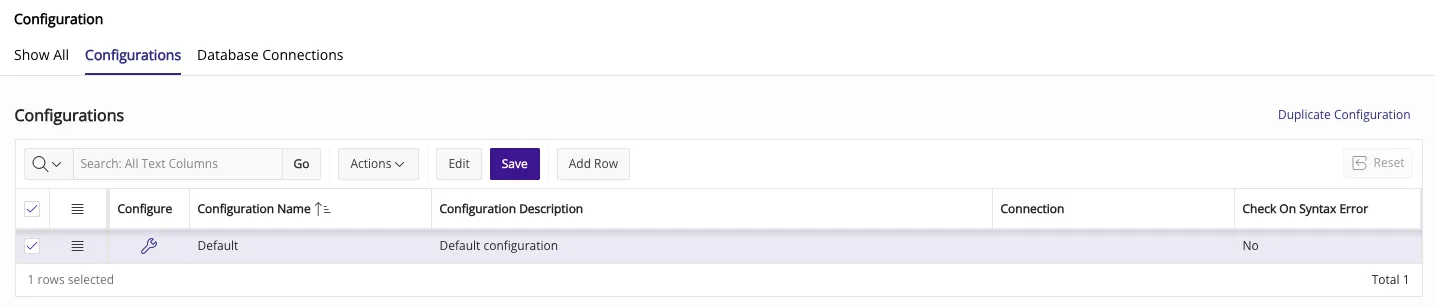
Section titled “Configurations”With a Starter Subscription (Free), you can only have one configuration. All other subscriptions can have as many configurations as they want.
Duplicate Configuration
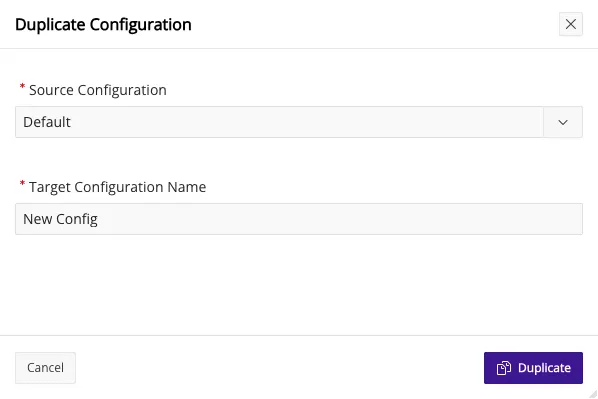
Section titled “Duplicate Configuration”If you have a configuration that just needs a few small changes for a project, It’s usually easier to copy the configuration and edit it rather than starting from scratch.
Go ahead and press the Duplicate Configuration button in the top right corner.
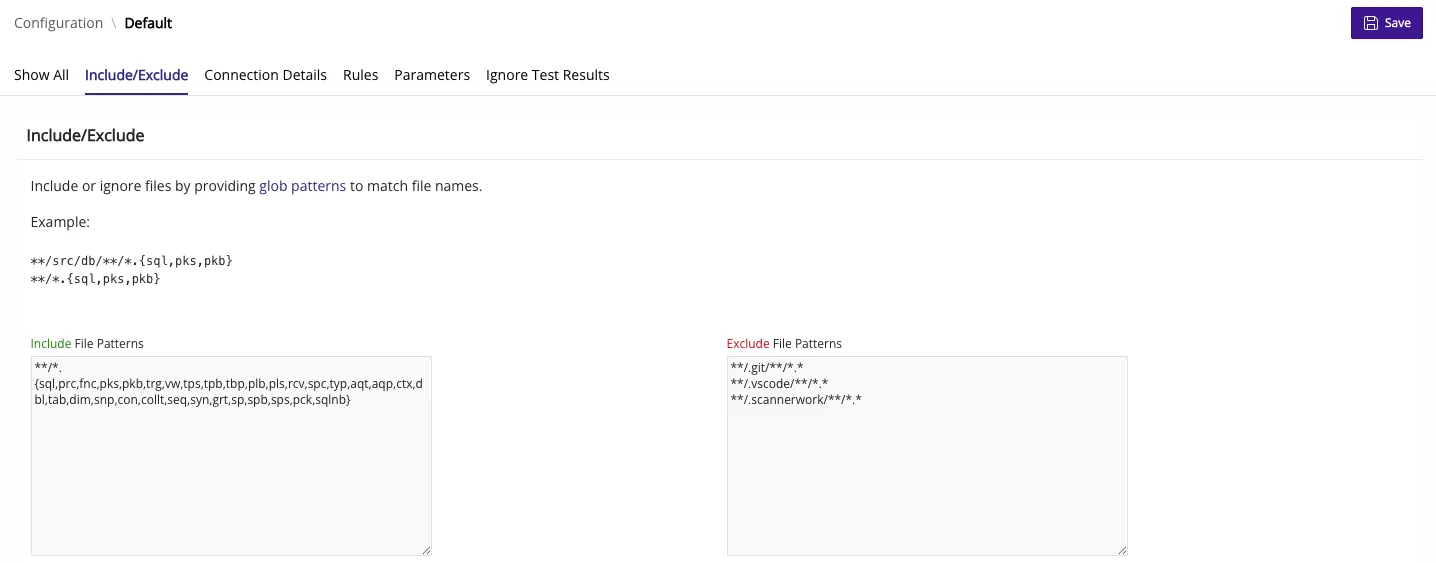
Include/Exclude File Patterns
Section titled “Include/Exclude File Patterns”Press the wrench icon in the configure column to see the details of a configuration.
In the Include/Exclude section you can define the file patterns to include and exlude.
Each line matches a glob pattern. These patterns are used to match the URIs provided by the client. These URIs are fully qualified, like the following examples:
file:///Users/user/project/some_file.sqlfile:///c%3A/Users/user/project/some_file.sqlfile:///c:/Users/user/project/some_file.sqlTherefore all patterns should start with **/ unless you really want to specify fully qualified URIs.
Connection Details
Section titled “Connection Details”Here, you can select a database connection for the configuration. A database connection is required to execute SQL-based tests. Futhermore, it can improve the results of checks and quick fixes.
In this section you can enable and disable rules. Furthermore for every enabled rule you can override the default
- Severity as used by VS Code (
Error,Warning,Info,Hint); - Severity level as used by SonarQube (
Blocker,Critical,Major,Minor,Info).
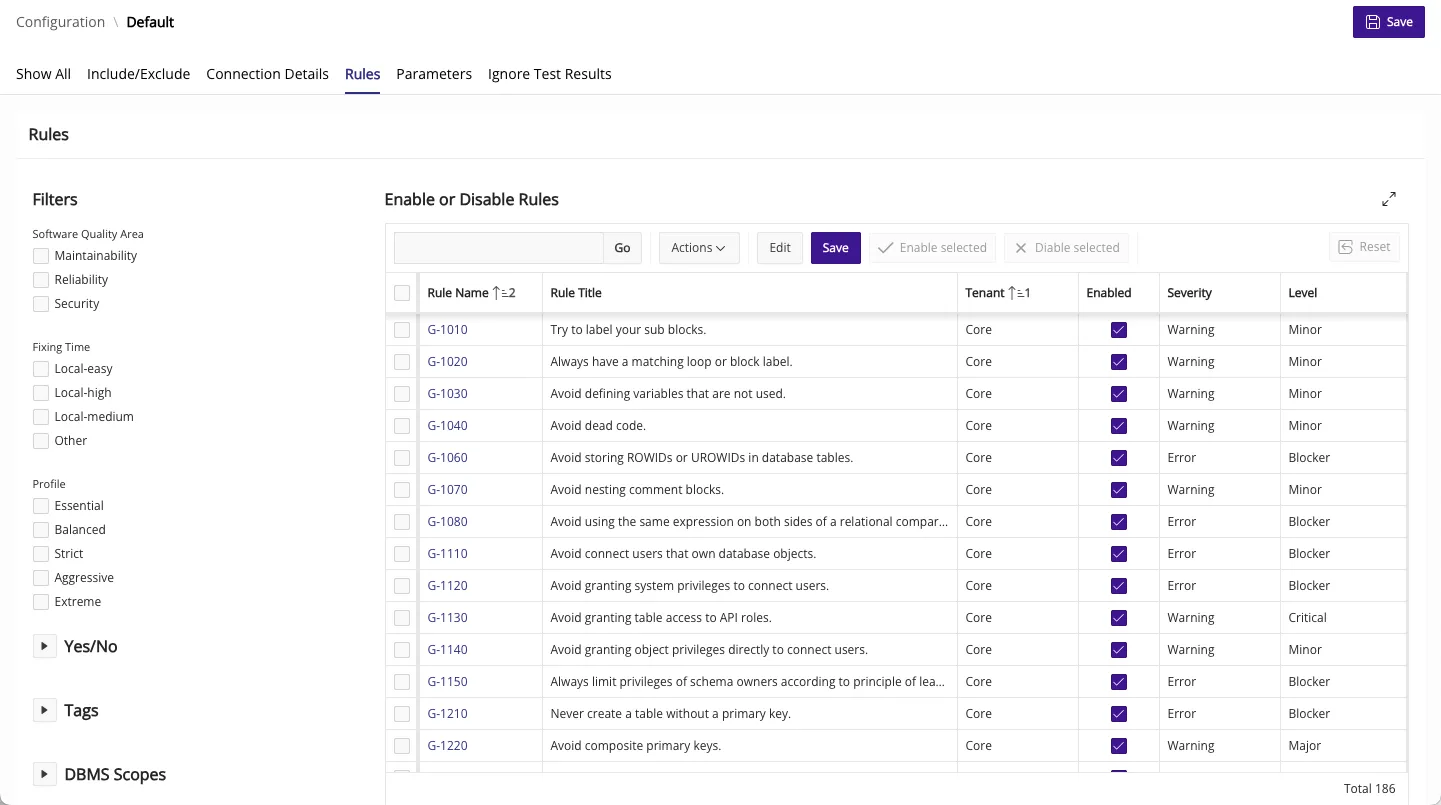
Click on the rule name to see the Rule Details on the Rules page.
Parameters
Section titled “Parameters”In this section you can configure the parameters used by dbLinter rules.
A parameter can be used by more than one rule.
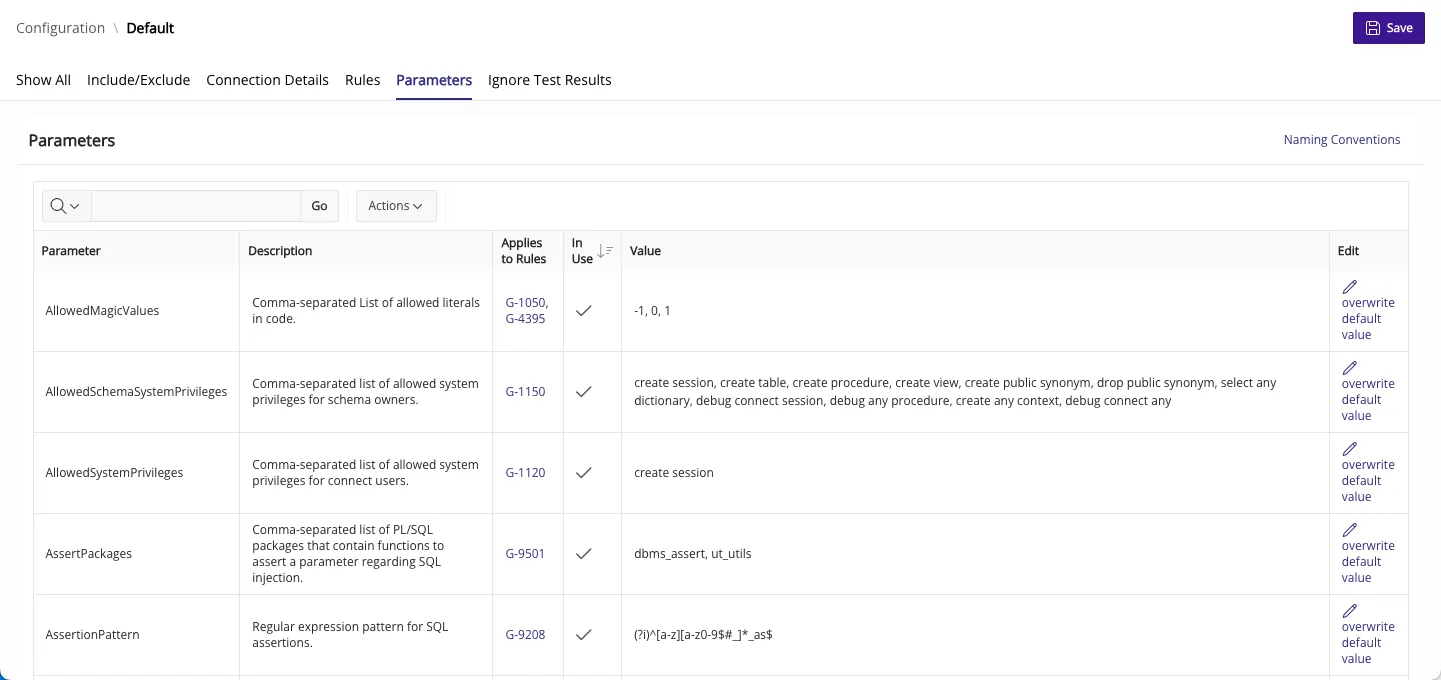
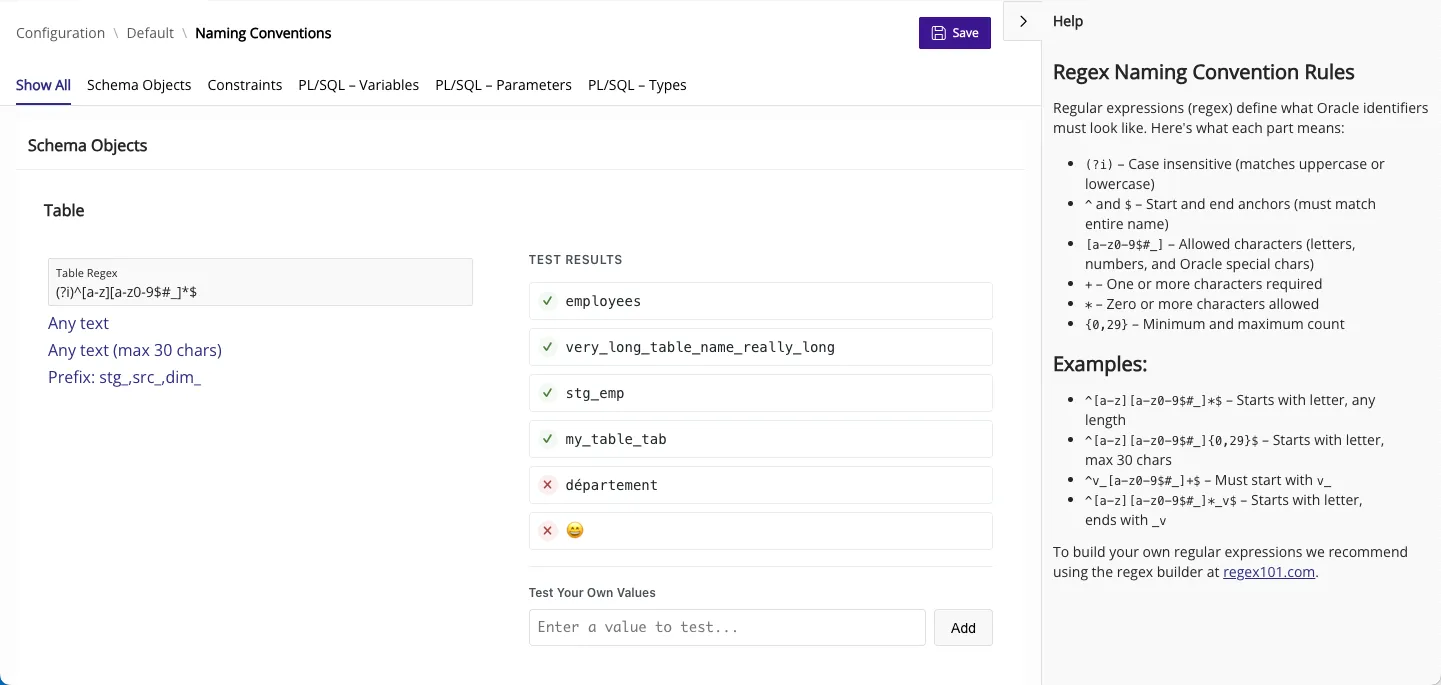
Naming Conventions
Section titled “Naming Conventions”Click on the Naming Conventions button (top right corner) to open the page where
you can change and test the parameters related to naming conventions.
Ignore Test Results
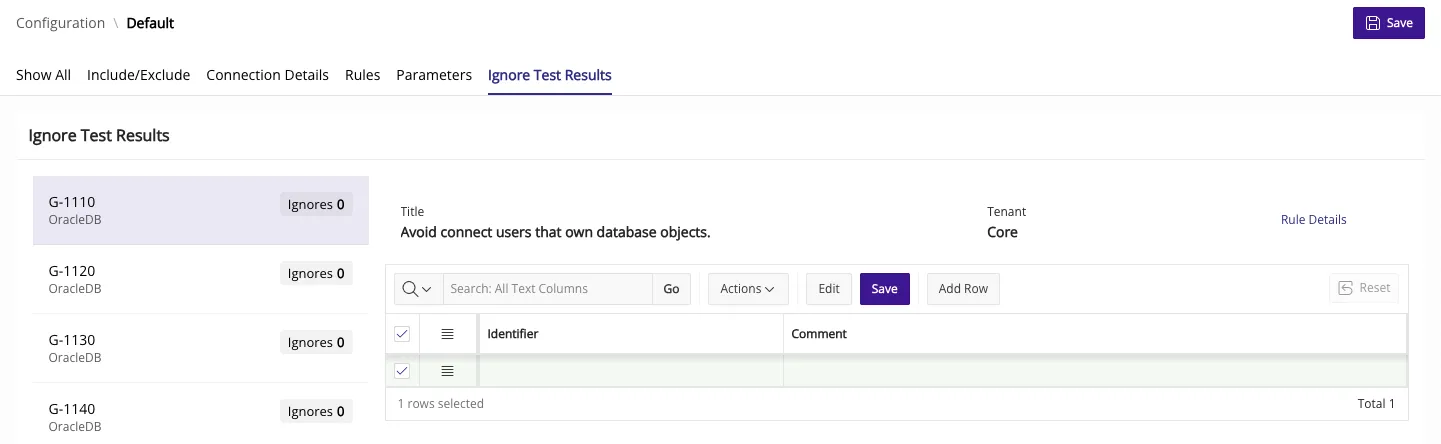
Section titled “Ignore Test Results”In this section you can managed the test results to be ignored. Usually, you add new results to be ignored in VS Code after running SQL-based tests. You can do that there for one or more test results and add a comment.
This page is used to update or delete existing test results that are to be ignored. However, you can also add new tests to be ignored on this page.