
Rules
The rules page is the only public page. This means this page can be accessed without a dbLinter account.
This page shows the same content as the Static Rule Site.
However, the Static Rule Site shows only the public rules of the Core tenant. Tenant-specific rules are
only visible here and only if you are signed in.
Get started with VS Code
Section titled “Get started with VS Code”When you are signed in, you will see this extra header.

Click on How to set up VS Code to find out how to set up VS Code to use your dbLinter account and its configuration.
Search Criteria
Section titled “Search Criteria”In this page you can query rules by the following search criteria:
| Facet Group | Description |
|---|---|
| Search box | Case-insensitive search for a substring in the rule name or rule title. |
| Tenant | The tenant the rule belongs to. The Core tenant contains all provided rules. |
| Check? | Does the rule implement a check? |
| Free? | Is the rule included in Starter Subscription (Free)? |
| Quick Fix? | Does the rule implement a quick fix? |
| Test? | Does the rule implement a SQL-based test? |
| Severity | The severity of a rule as used by VS Code (Error, Warning, Info, Hint). |
| Level | The severity level of a rule as used by SonarQube (Blocker, Critical, Major, Minor, Info ). |
| Quality Area? | The quality area of a rule as used by SonarQube (Maintainability, Reliability, Security). |
| Profile? | Grouping according to importance, general applicability and controversy. |
| Fixing Time | Time to fix a rule viloation (Local-easy, Local-medium, Local-high, Other). |
| Tag | The tag a rule was given. |
| DBMS Scope | The minimum version of a DBMS System this rule can be applied to. |
Tabular Search Results
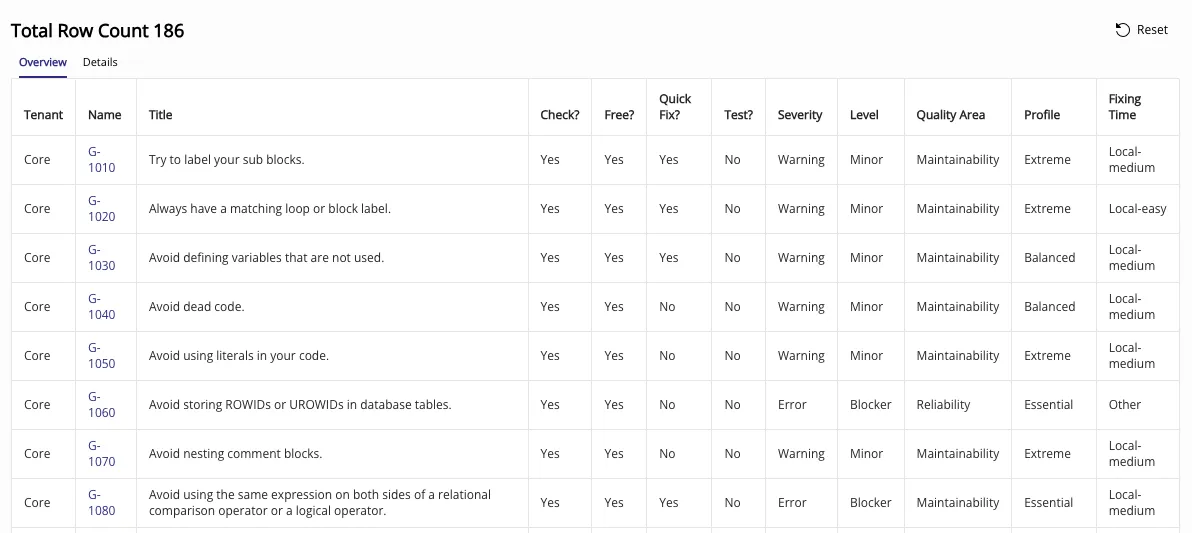
Section titled “Tabular Search Results”In the Overview tab, you can see a list of all the rules that match your search criteria. You can click on the rule name to show the details of a rule.
Rule Details
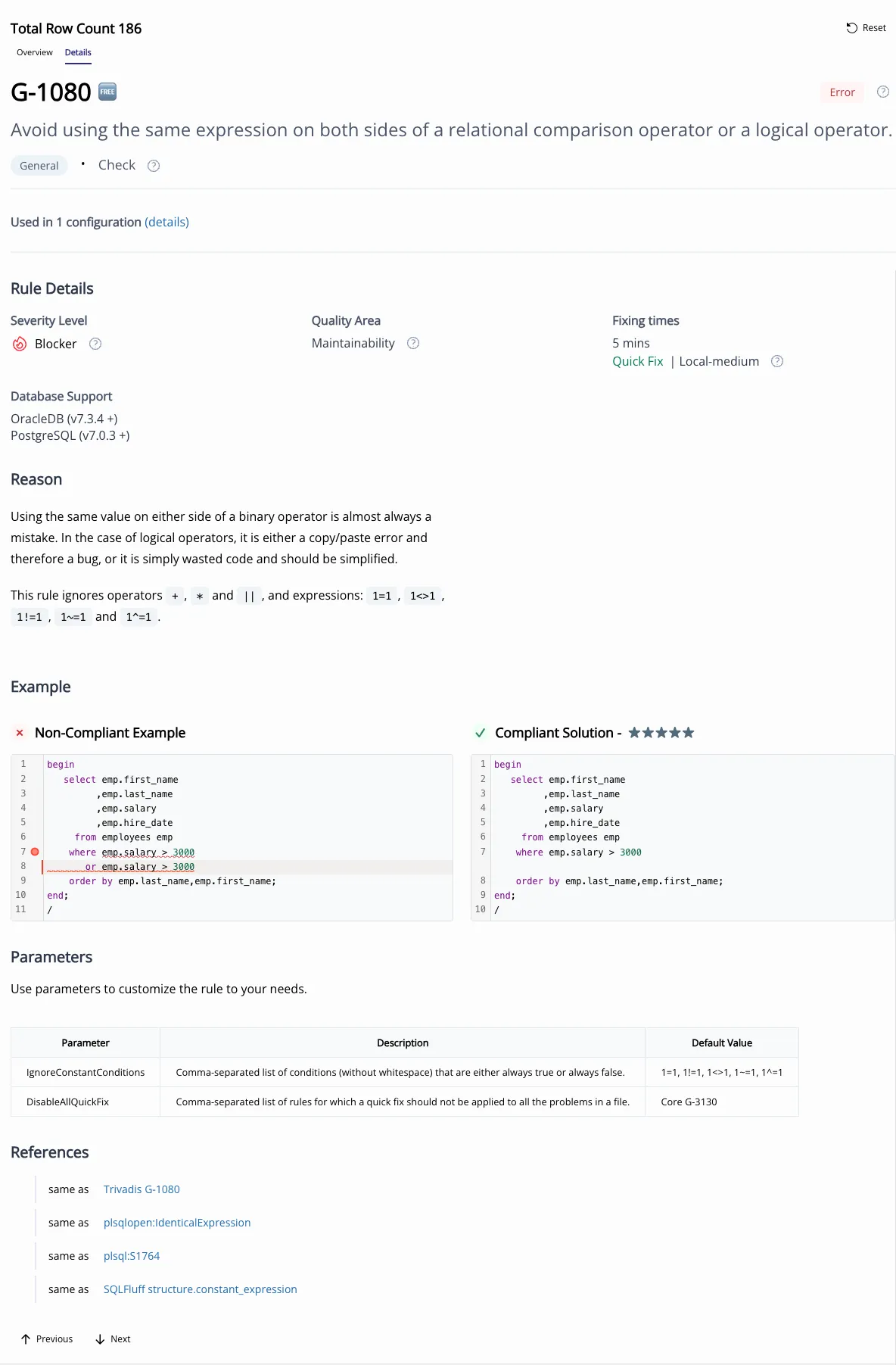
Section titled “Rule Details”In the Details tab, you see the details of one rule that match your search criteria.
In the second tab (details) you see a single rule.
You can use the buttons labelled Previous or Next to go through the rules. You can also use the p and n keys to do the same thing.
Enable/Disable Rule in Configuration
Section titled “Enable/Disable Rule in Configuration”You can click on (details) to enable or disable the rule in a configuration,
change the severity, severity level and the parameters.
