User Access
Request Tenant Access
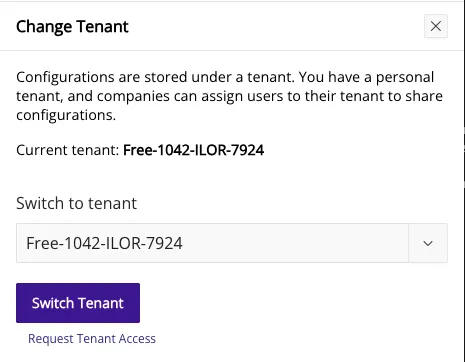
Section titled “Request Tenant Access”After creating a dbLinter Account for a Starter Subscription (Free) and signing in, you can request access to another tenant by clicking on the tenant button.

In the Change Tenant pop-up window click on Request Tenant Access.
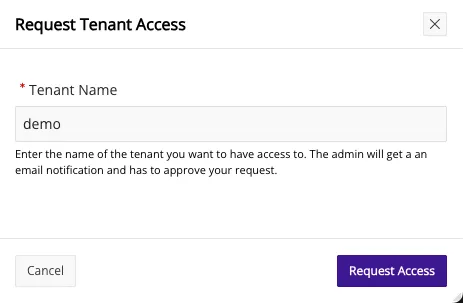
In the next window enter the name of the tenant and press Request Access.
The tenant admin will then receive an email that looks like this:
Approve Tenant Access Request
Section titled “Approve Tenant Access Request”After you sign in as tenant admin, you will see a button that says Pending Tenant Access Requests.

Click on this button to open the Tenant Access page, where all pending access requests are listed.
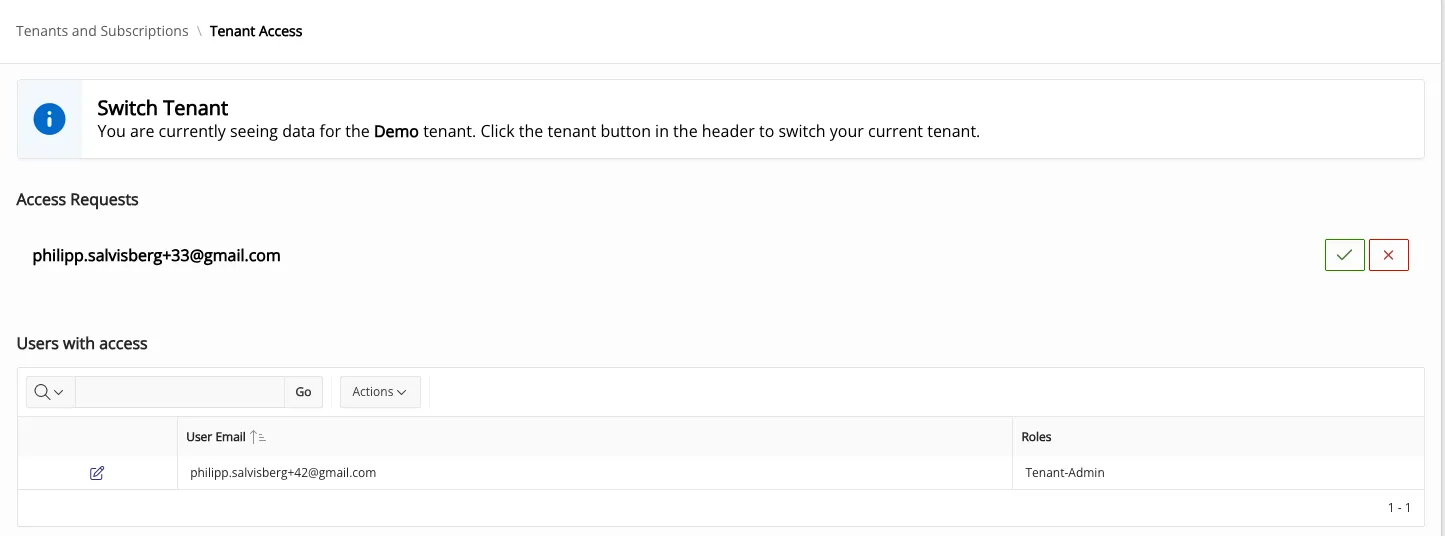
Click on the check icon on the right of the name to approve a tenant access request.
Afterwards the new user is listed in the Tenant Access page.

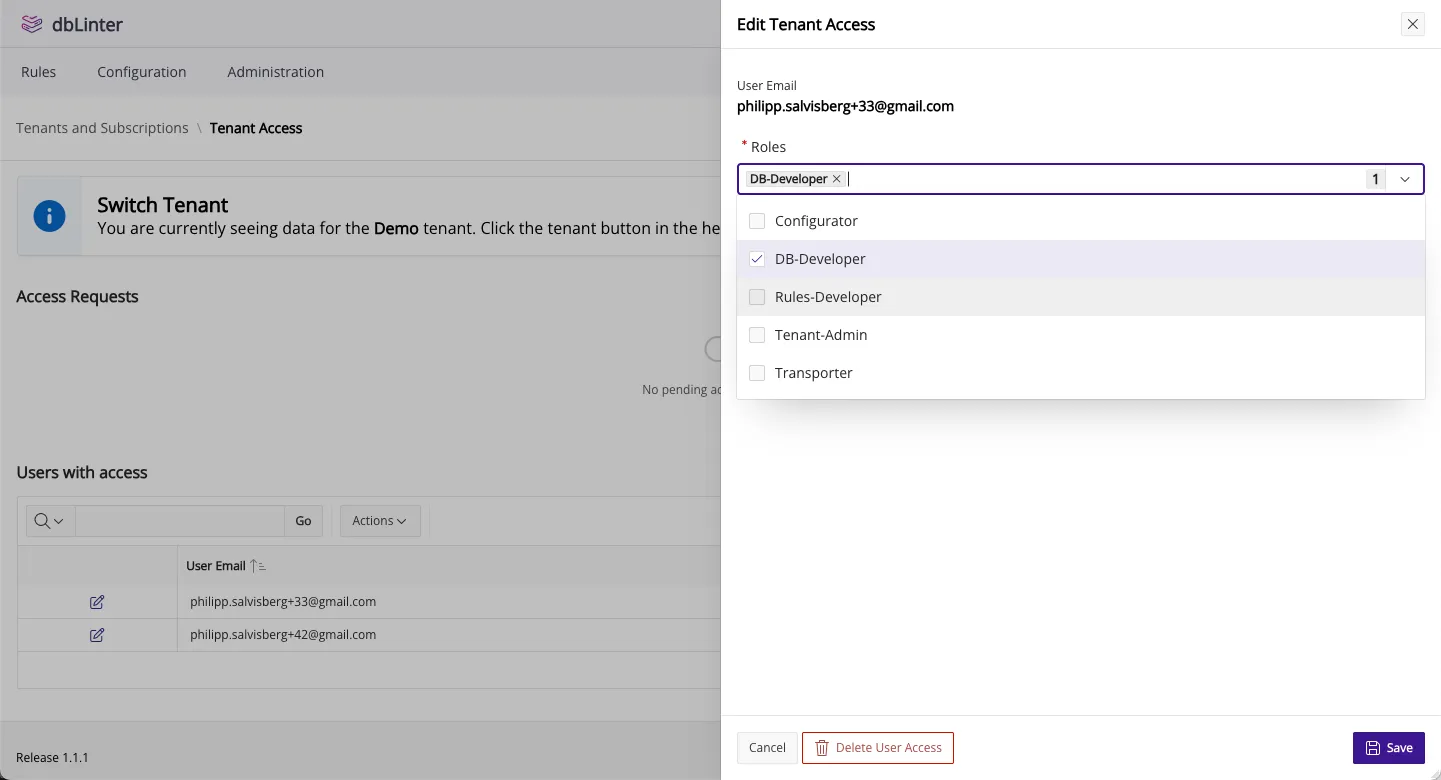
Click on the pencil icon right to the user’s email address to change the access rights.
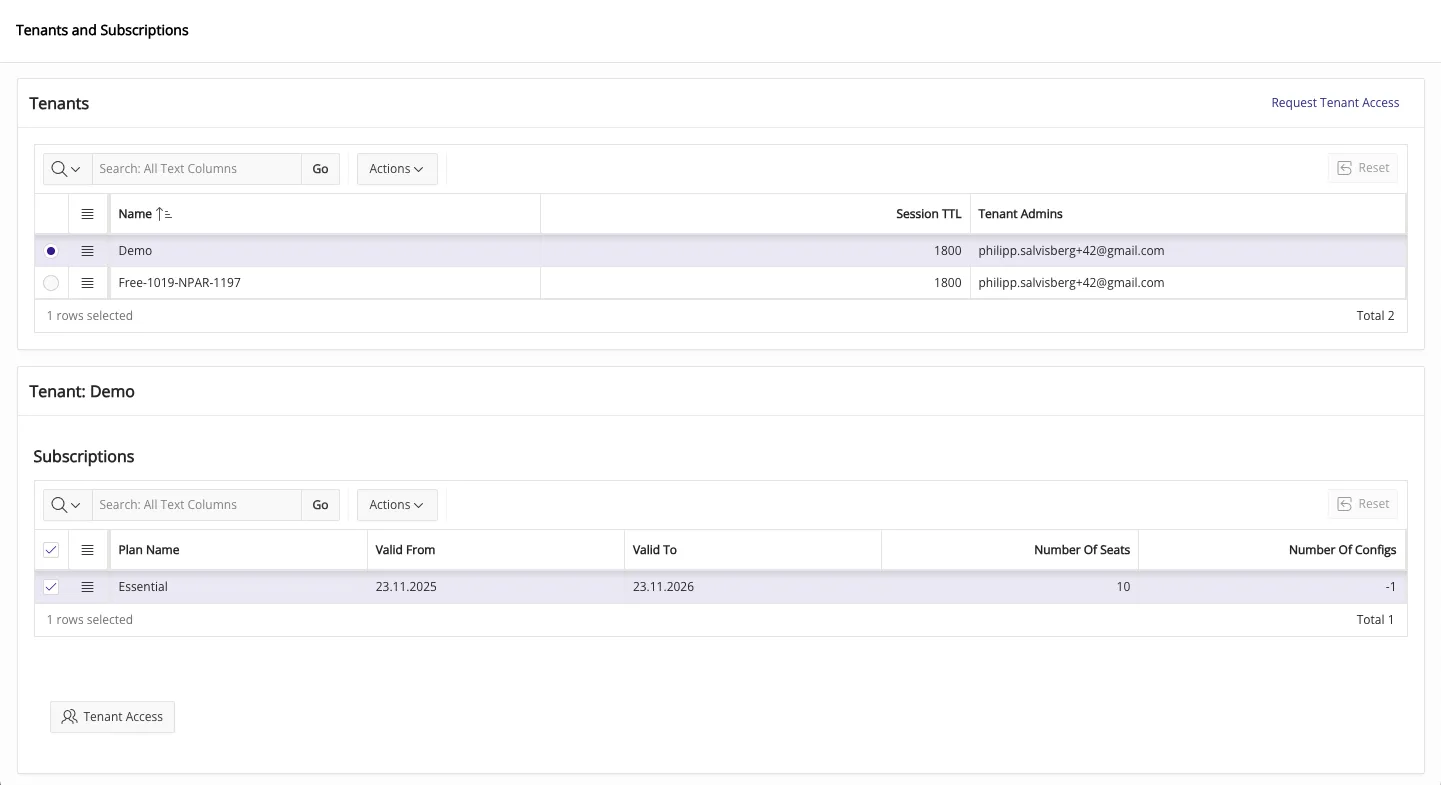
Tenants and Subscriptions
Section titled “Tenants and Subscriptions”As a tenant admin you can view the tenants and the subscriptions you have access to.
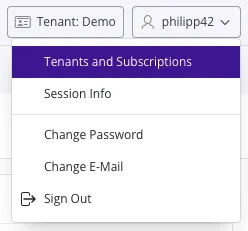
Click on the user button (top right corner) and select Tenants and Subscriptions from the pop-up menu.
This will open the following page where you can press the Tenant Access button to manage the user access rights.